To setup white label top level domain:
Setup domain provider records:
- Go to your domain provider, find DNS settings and create the following CNAME records:
- CNAME console white-label.cosmos-os.com
- CNAME editor white-label.cosmos-os.com
- CNAME cms white-label.cosmos-os.com
- CNAME ecommerce white-label.cosmos-os.com
- Result should looks like:

- Note: if you use Cloudflare (recommended) to manage your DNS, turn Proxy checkbox on.
Setup in Starfish console:
- In Starfish console, go to Brand Settings page
- In Whitelabel main domain section, enter top level domain name.
- Top level domain name, is the domain name you want to serve starfish console / editor / cms from.
- Domain name example: for domain.com, Starfish will use console.domain.com, editor.domain.com, cms.domain.com, ecommerce.domain.com
- In this example, type domain.com in the field.
- Click Save and verify.
- The system will verify that dns CNAME for each subdomain is set correctly, if not an error will shows up.
- To fix the issue, setup CNAME in your domain provider for each of the subdomains.
- Wait few hours and verify again so DNS configuration will propagate thru DNS servers around the world.
Check Your domain:
Once status changed to Connected:
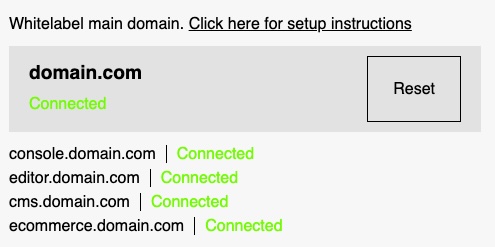
Go to https://console.domain.com and check result.